

Where would we be in life without alarms? Alarms get us to work on time, to the airport on time, to church on time; they stop us missing deadlines and birthdays and remind us to take our medication when we need it. They're useful for everything.
On Mac, you can set alarms for tasks, events, meetings, and just about anything else that would require an alert. In this article, we'll show you how to set an alarm clock on Mac with the help of the Apple Calendar and some useful apps.

Tools for alarms automation
Get some of the best timer utilities in one pack. Set alarms with ease, or rather have it done for you!
How to set an alarm on Mac with the Apple Calendar
The Apple Calendar is the place for all things schedule-related, including alarms. To set a one-time alarm, you have to first create an event.
- Click on the Launchpad, then click on the Calendar app.
- Double-click the date that you want to set the alarm on.
- Right-click your preferred time slot and select New Event.
- Enter the name for your event, then click on the date and time section.
- Enter the time that you want the alarm to go off, then click on None next to alert.
- In the pop-up menu click Custom..., then Message. Click on Message with sound and choose an alarm chime.
- Select how many minutes before the event you want the alarm to go off, then click OK.
Any alarm that you set in your Mac Calendar app with automatically sync with your iPhone or iPad, so if you're away from your computer you will still receive the alert.
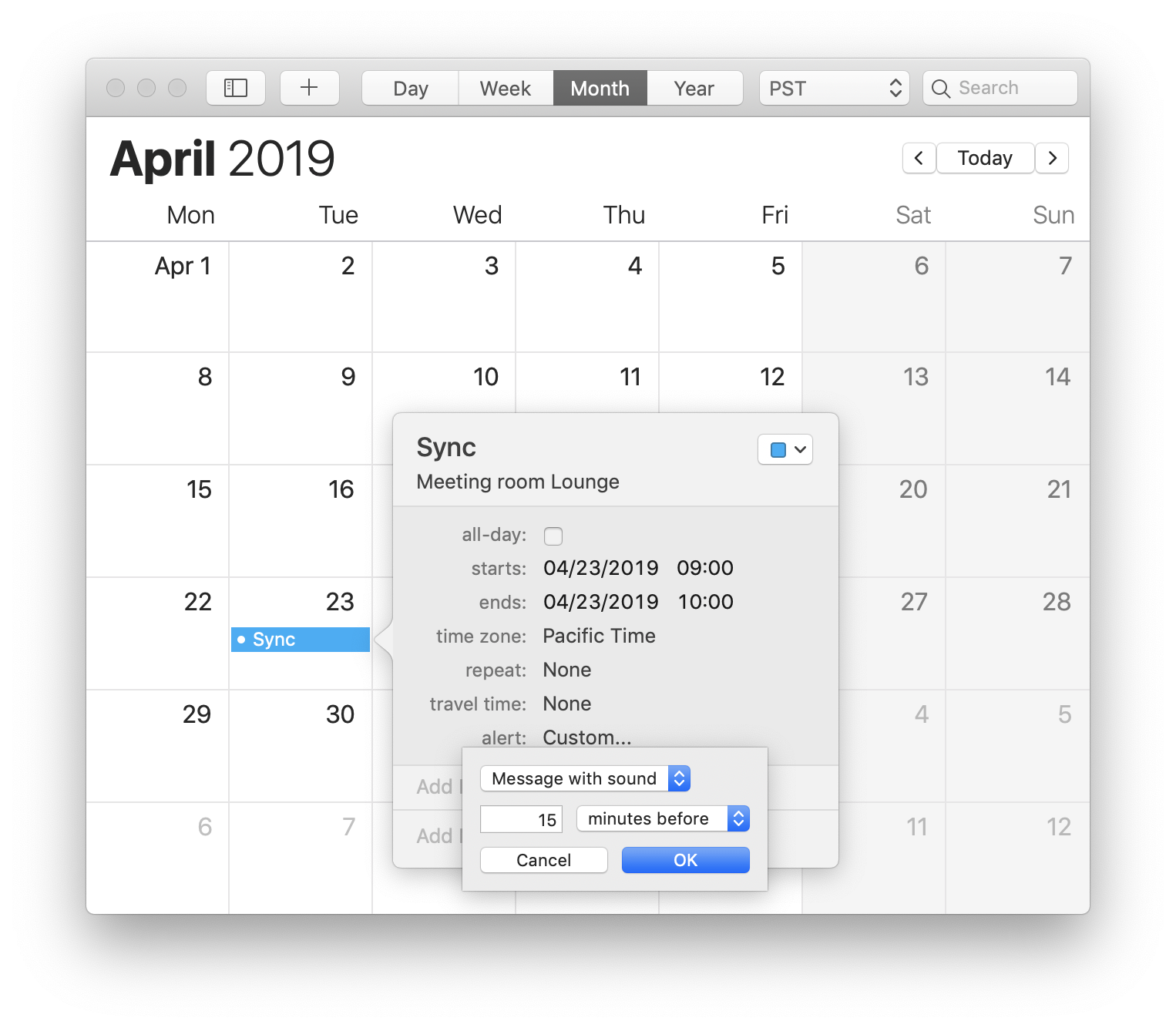 This is not an option if you were looking how to set an alarm on Mac to wake up: the alert will not go off if your Mac sleeps at the time. To keep your Mac awake, use an app like Lungo. It keeps the Mac awake and prevents it from going into sleep mode.
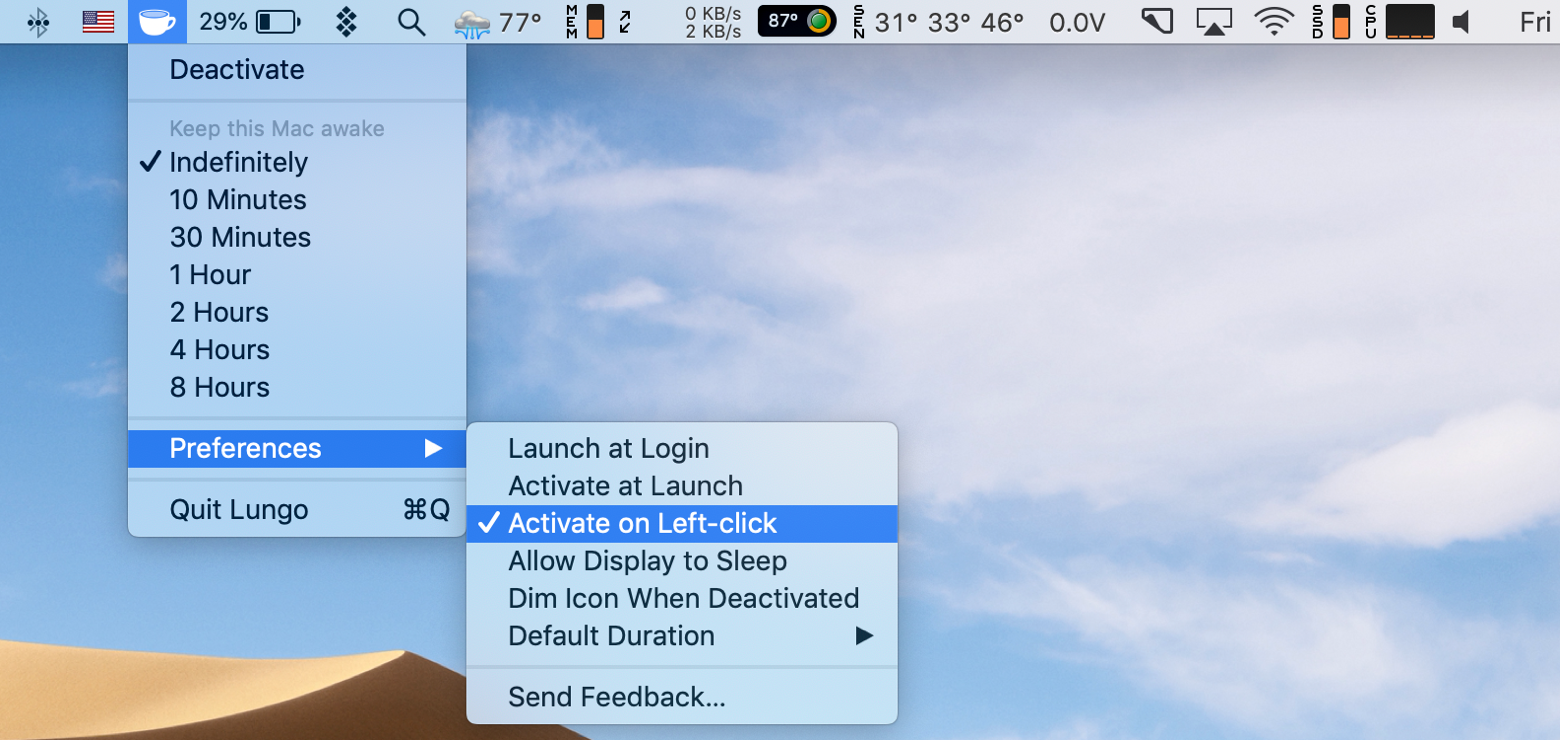
To sum it up: if you need an alarm clock that works in sleep mode, install Lungo, set an even for morning, turn on Message with sound.
Easy ways to set alarms and timers on Mac
Using the Calendar app is perfect for one-off events such as a dentist appointment or a meeting with friends but if you're relying on alarms to complete tasks, hit deadlines, and attend events, you're going to need help from a third-party app.
While there are dozens of alarm-based apps available for Mac, three stand out above the rest: 2Do, BeFocused, and Waiting List.
They're all different in what they have to offer which is why we recommend giving all three a home on your desktop.
Set one-time alerts
If there's a special occasion for which you need an alarm, set one-time alerts. Here's how you can do it with Apple's Calendar:
- Open Calendar from the Dock or Applications and double-click a specific date.
- In the "New event," type the name of your custom event.
- Pick the date and time. In the "Alert" field, specify when the alarm should go off.
- In the drop-down menu, select "Message with sound" -- you can pick the sound from the list of suggested options or upload your own audio.
Alternatively, you can remind yourself about important one-time deals with 2Do, a task management app that adapts to your needs and lets you set alarms for anything and everything.
Setting an alarm in 2Do starts with creating a New Task. This can be done in seconds by clicking on the + button from the top menu bar. Once you've named the event and edited the dates, click on the alarm icon and set the alarm to suit. It's as easy as that! When the alarm is set it will alert you whether you have 2Do running or not.

There is no wrong way to use 2Do. It's simple, intuitive, and a must-have for busy lifestyles.